Create Shopify Pages with Canva AI
The world’s best design tool can now create unique, fancy and engaging ecommerce pages with their latest AI. This guide shows you how to create a landing page using Canva AI and import it into Shopify using Canvify.
With Canva AI, you can now generate insane website page designs from prompts. With Canvify, that design becomes live inside your Shopify store.
Before You Start
You currently cannot take an existing Canva website and ask Canva AI to redesign or improve it. Canva AI only works for new designs. So, for this workflow, we will create a brand-new Canva AI website design.
1: Open Canva AI & Prompt a New Design
Go to Canva AI and start a new chat.
When prompting, clearly mention that you want an e-commerce website. Your prompt should include complete context like the type of website, fonts, color scheme, product images, ad button CTA etc.
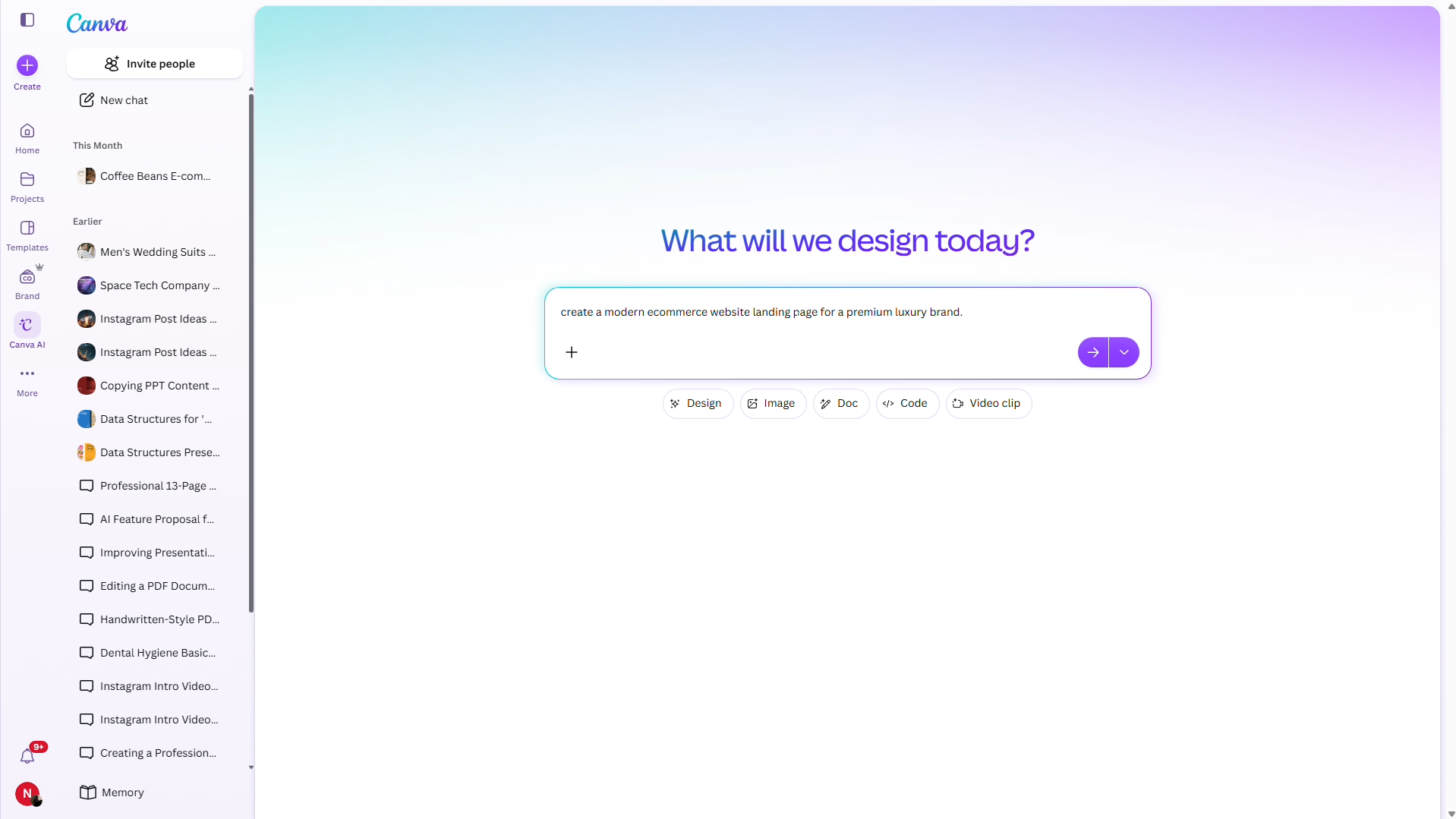
You can also provide a reference link, screenshot, or image if you want Canva AI to follow a specific style.
Avoid Header and Footer. We recommend asking Canva AI not to generate a navigation menu, header, or footer. Your Shopify theme already has a header and footer.
3: Enhance the Page Design
After adding your prompt, let Canva AI generate the website. Once the page is generated, open it and review the design.
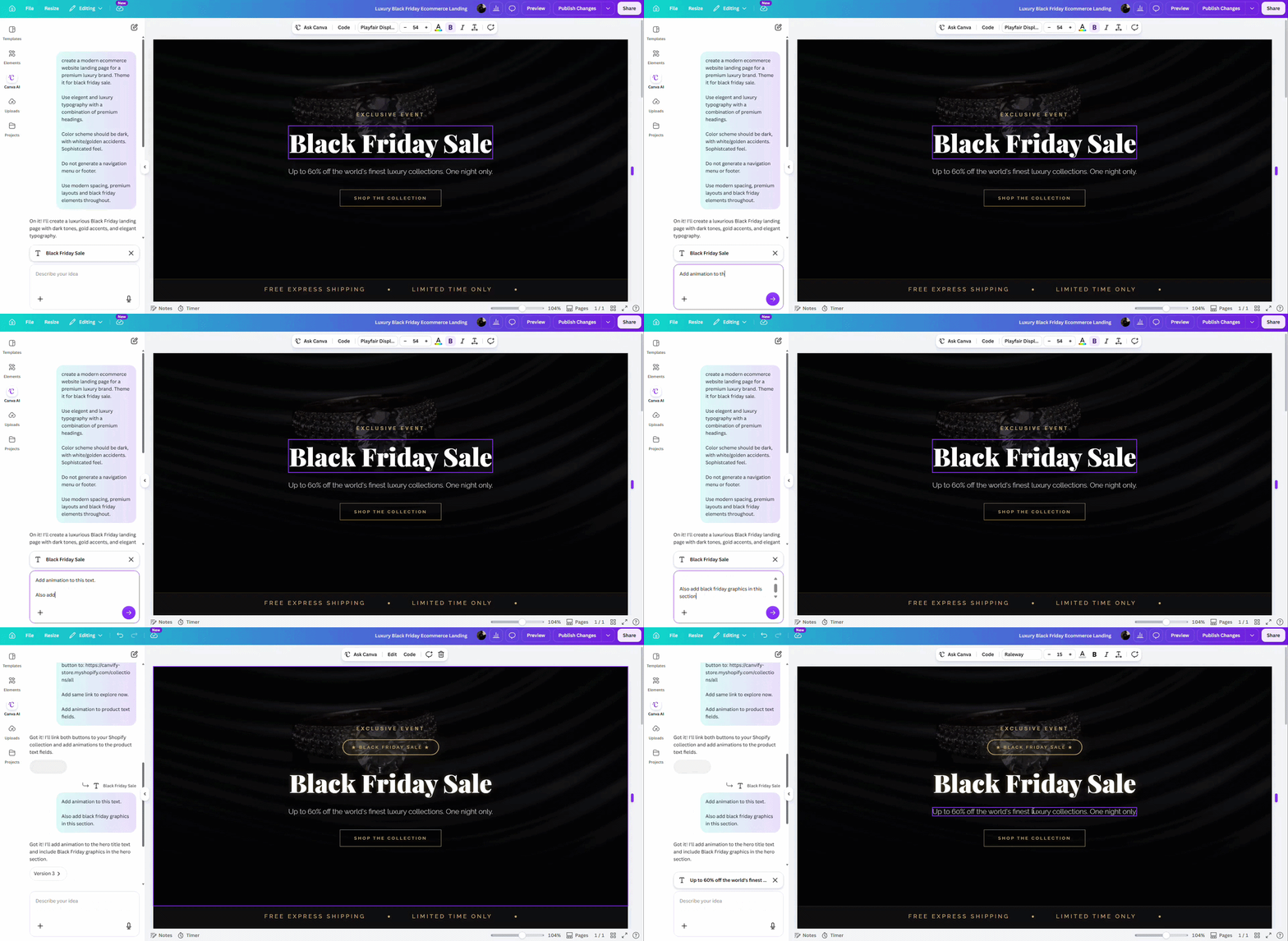
Canva AI websites do not work like normal Canva designs with fully editable layers. You can edit text, fonts, images and colors. For larger changes, use the Canva AI chat window.
Making Changes to Canva AI Design
-
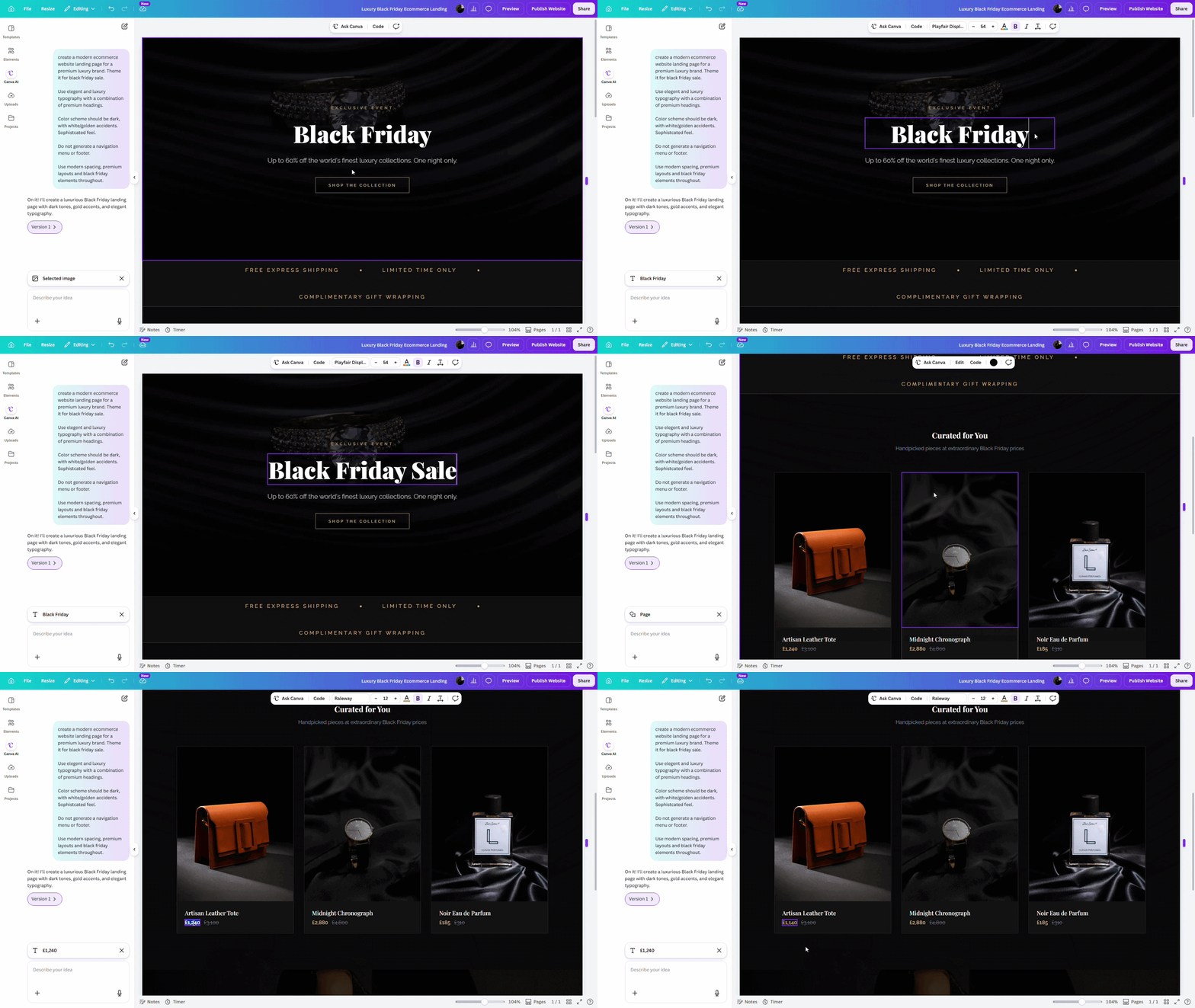
Changing Text: You can edit text, font, size, color and spacing by clicking on a text field, and making desired changes.
-
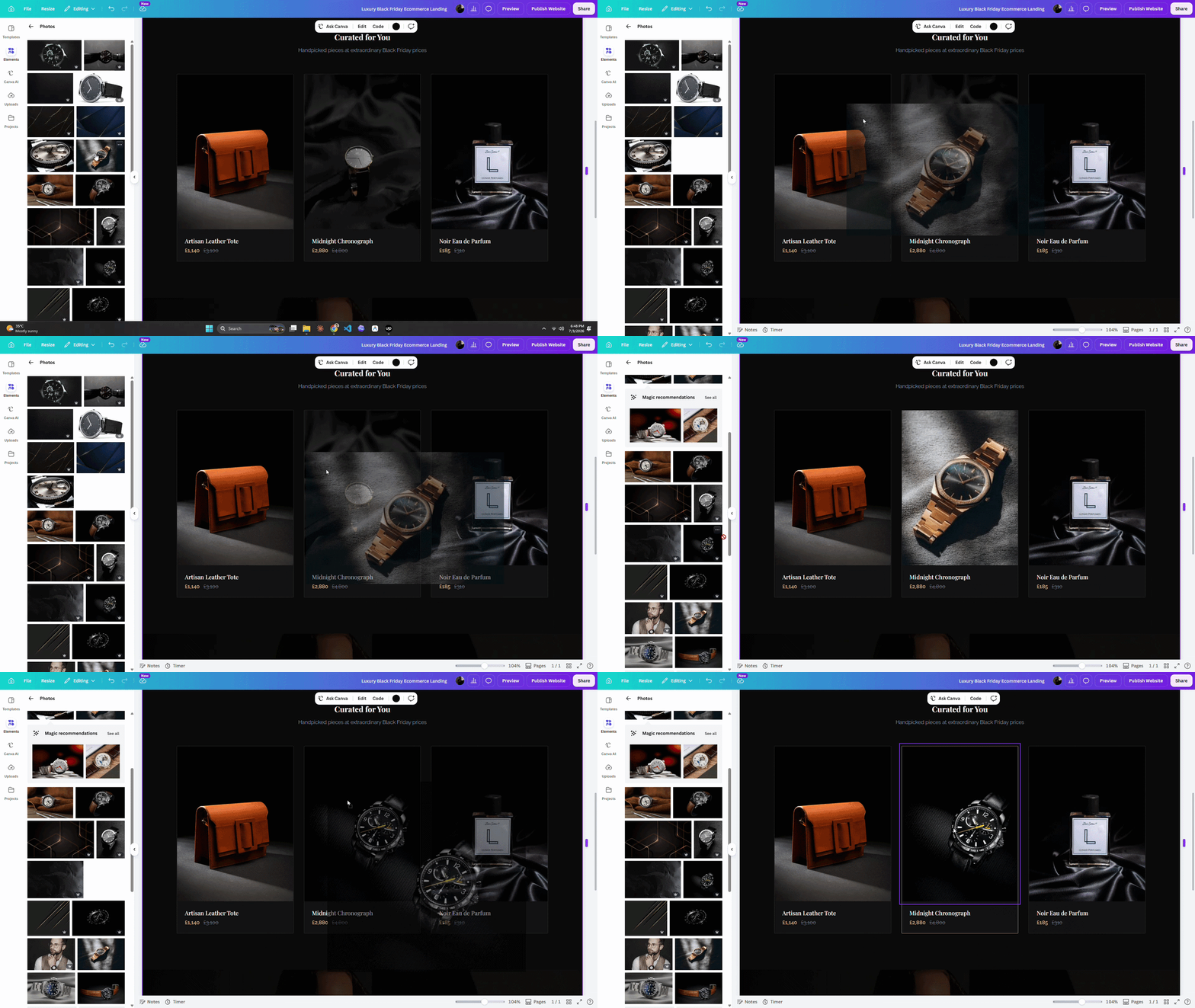
Swapping Images: You can swap an image by dragging the new one on top of it and Canva will automatically snap it in place.
-
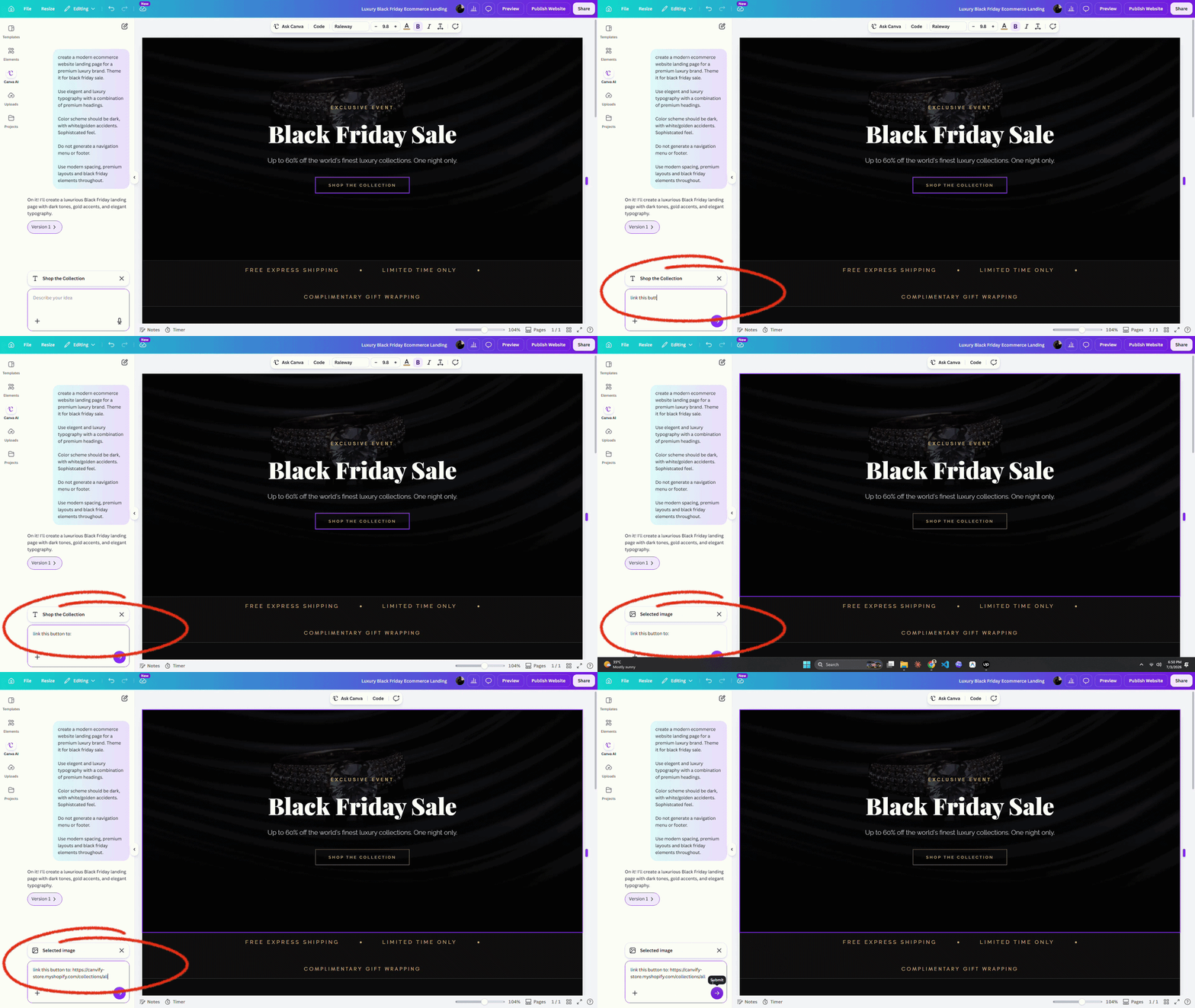
Adding Links: This change has to be made via the chat window. Select the text, button or image you want to add a link to. Ask Canva AI to add the link to the selected element.
-
Add Animations & Graphics: You can add moving animations, or graphics to your design via prompt. Giving Canva AI context through screenshots can help.
Tips When Designing With Canva AI
-
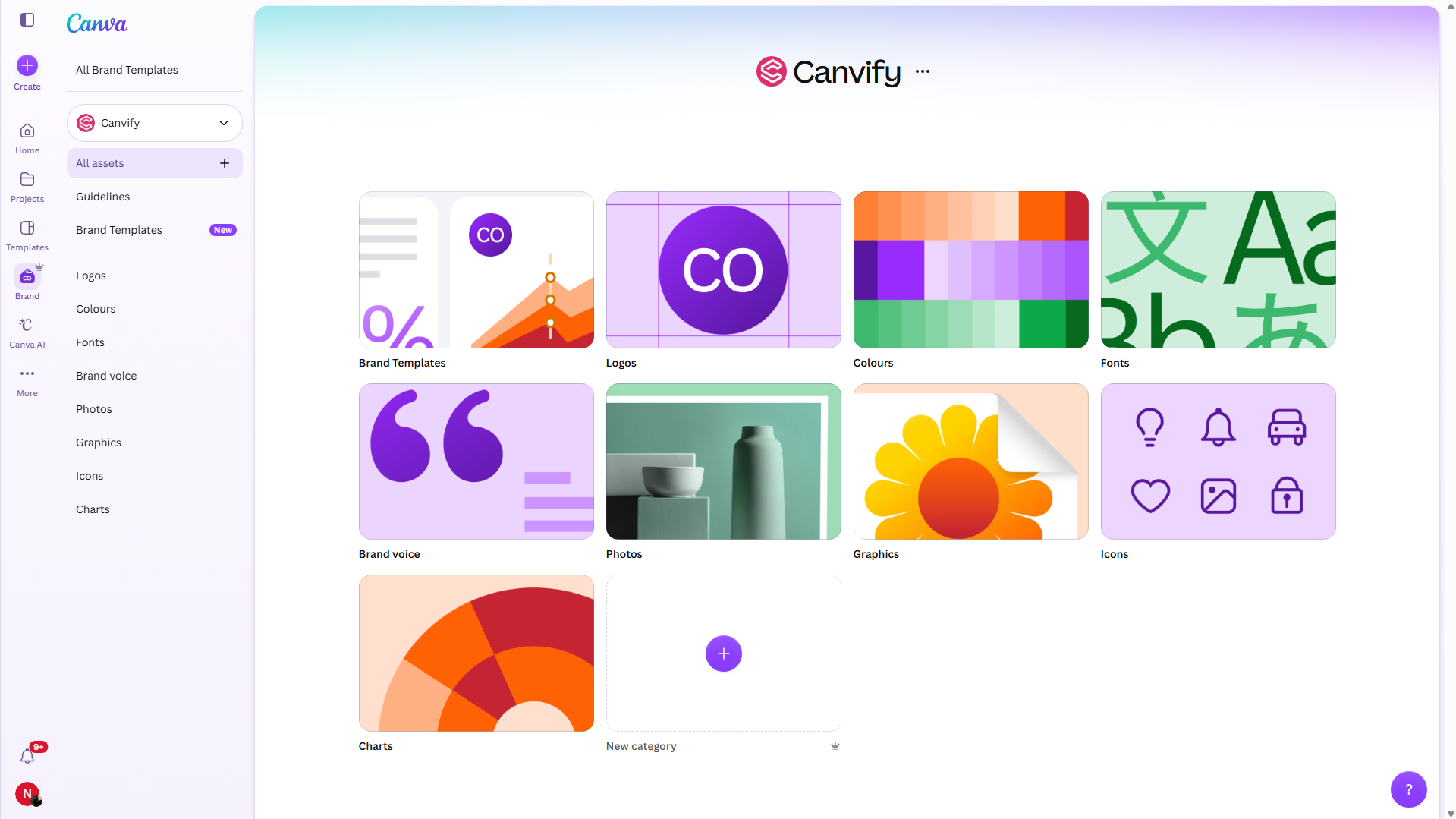
Attach Brand Guideline when writing the first prompt to preserve font styles, and color schemes. Canva AI will generate the design using our own brand guideline. You can read how to create a Canva Brand Kit in this tutorial.
-
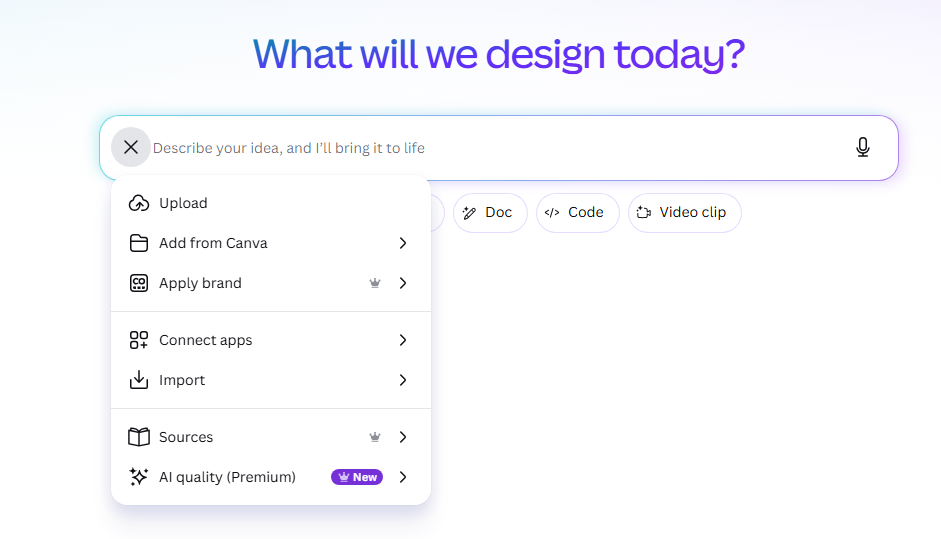
Connect your business apps like Calender, Airtables, Asana, Docs, Sheets, N8N etc, or attach assets from your uploads to provide context to Canva AI. It can connect
When done, publish as a website, and import to Shopify.