Create Canva Website Designs with ChatGPT and Claude
This guide shows you how to use ChatGPT, Claude and other AI tools with Canva to create a website design and import it into Shopify using Canvify.
You can use this workflow to quickly create landing pages, product pages, promotional pages, and seasonal sale pages for your Shopify store.
Step #1: Connect Canva to ChatGPT or Claude
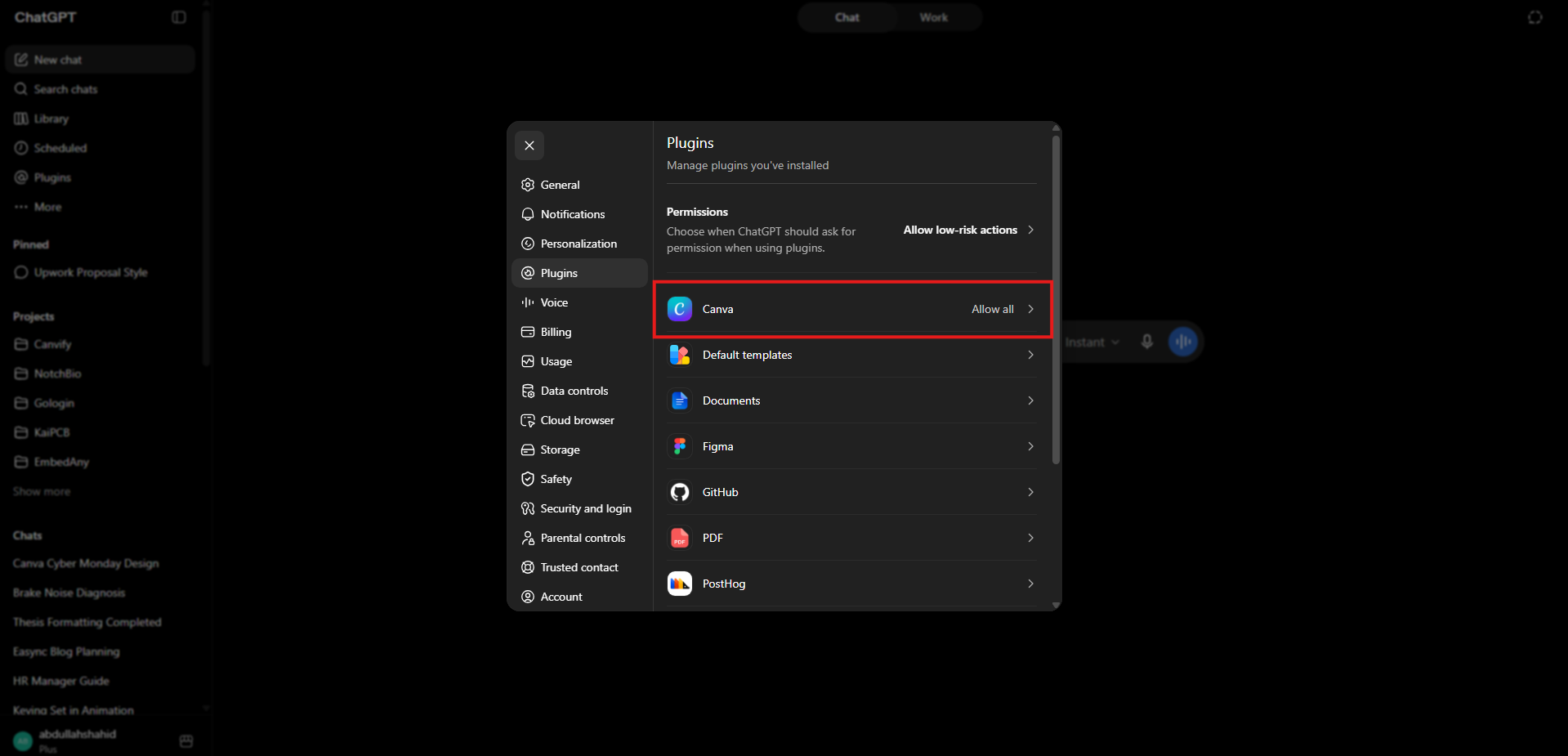
Connect Canva to your AI chatbot. If you’re using ChatGPT, you can find the option to connect in settings > Plugins > Canva.
If you’re using Claude, you can find the option in Settings > Connectors > Canva.
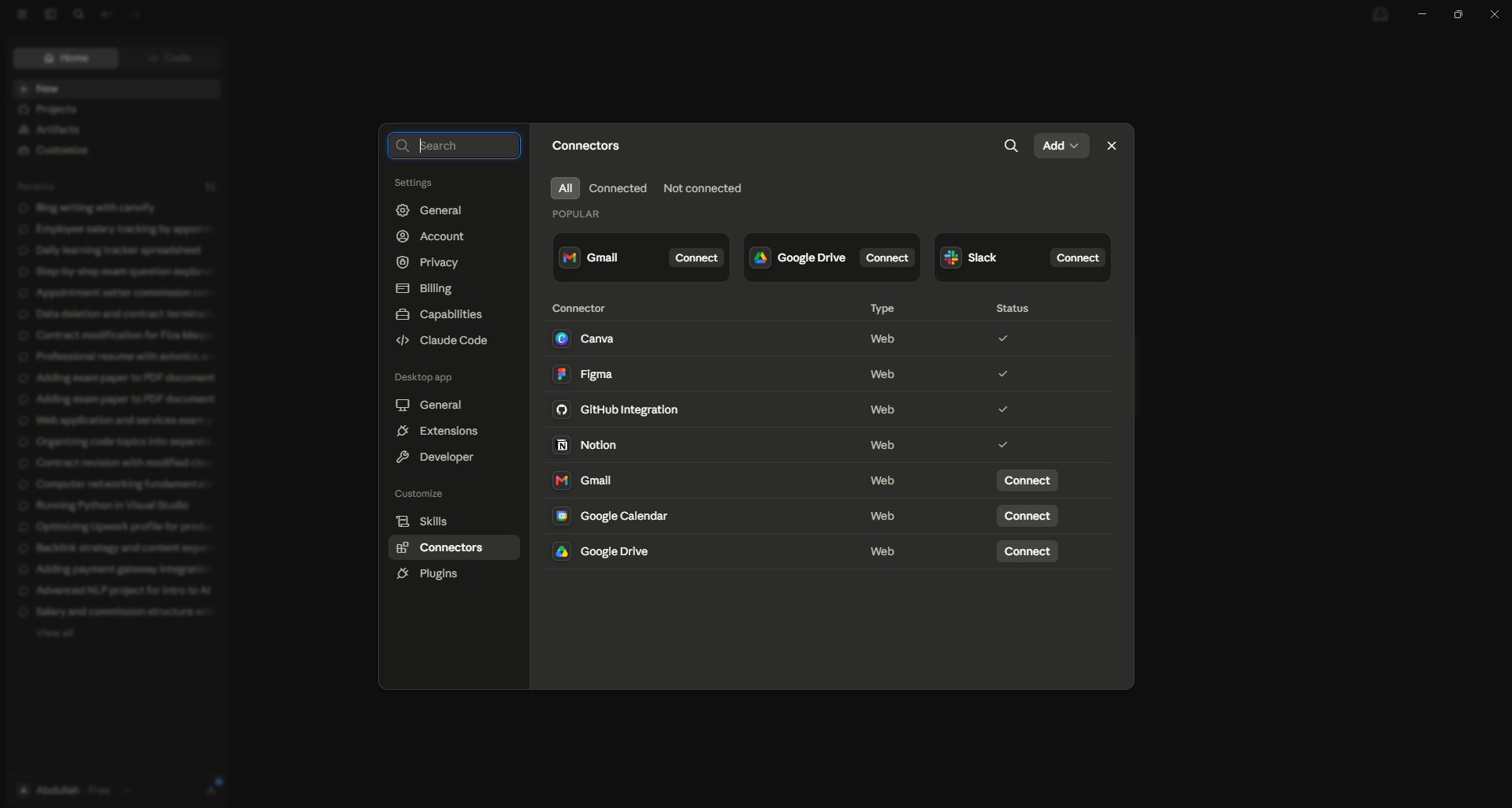
Click on it, and allow AI to access your Canva account.
Step 2: Create a Website Design via Chat
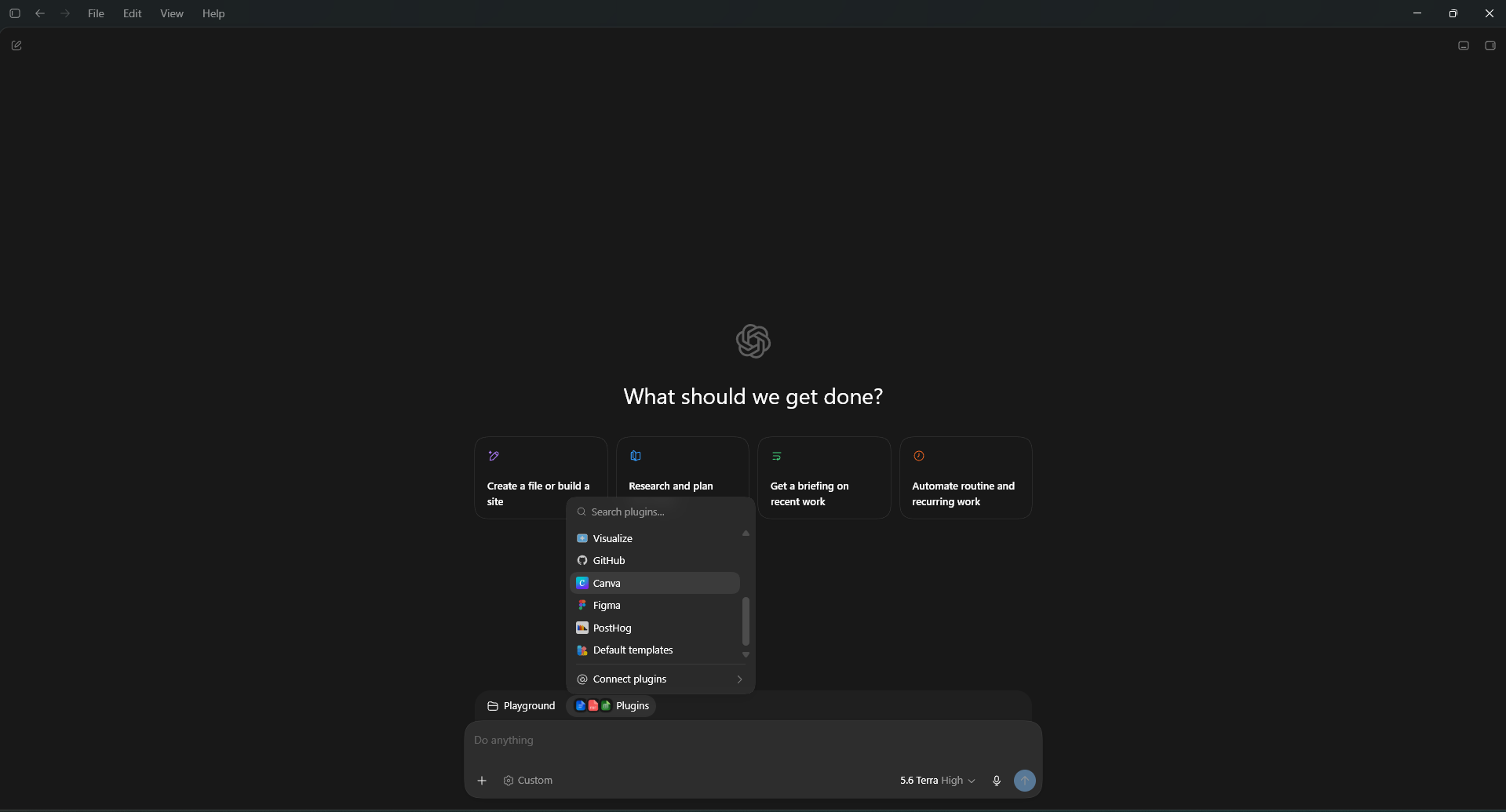
Start a new chat in whatever AIl you’re using. In both ChatGPT and Claude, typing “@” would show you a list of all available tools. Type “@canva” and select the option. Otherwise, you can click the ‘+’ icon to select Canva.
Now, start writing your prompt. In your prompt, clearly mention:
- You want an e-commerce website design, not a flyer or presentation.
- Define color scheme, theme, and sections.
- List product names, prices, and Shopify product page links.
- Upload any images you want to place in certain areas of your store.
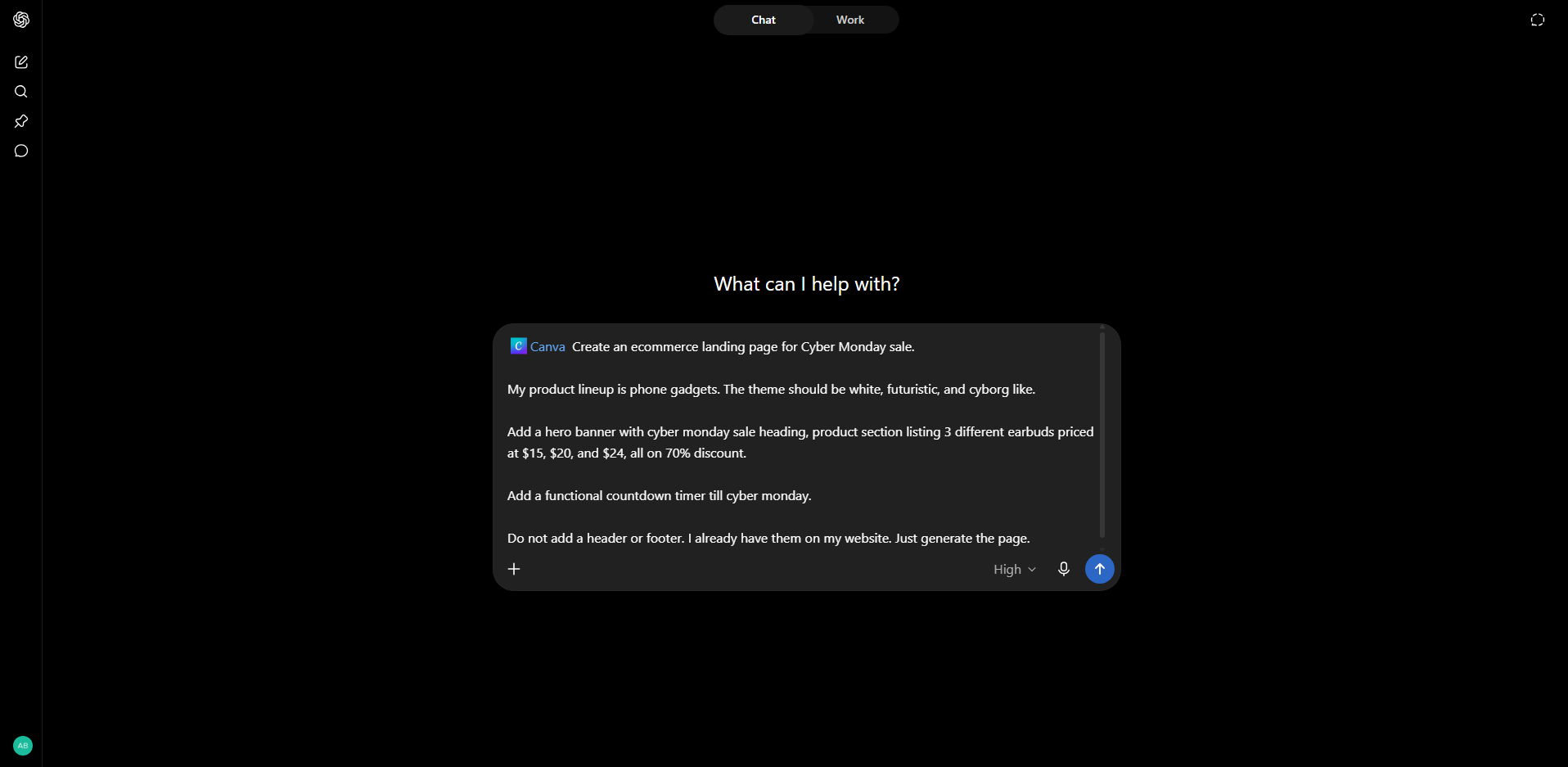
Send the prompt and wait for it to generate a design.
Step 3: Review the Design & Improve
Once the design is generated, both ChatGPT and Claude will give you two links: View Design and edit design. If you don’t want to take over the design yet, you can just view it, and explain your changes to your AI tool.
Take screenshots, annotate changes, explain what more sections you want, and which buttons should link to which product pages, etc.
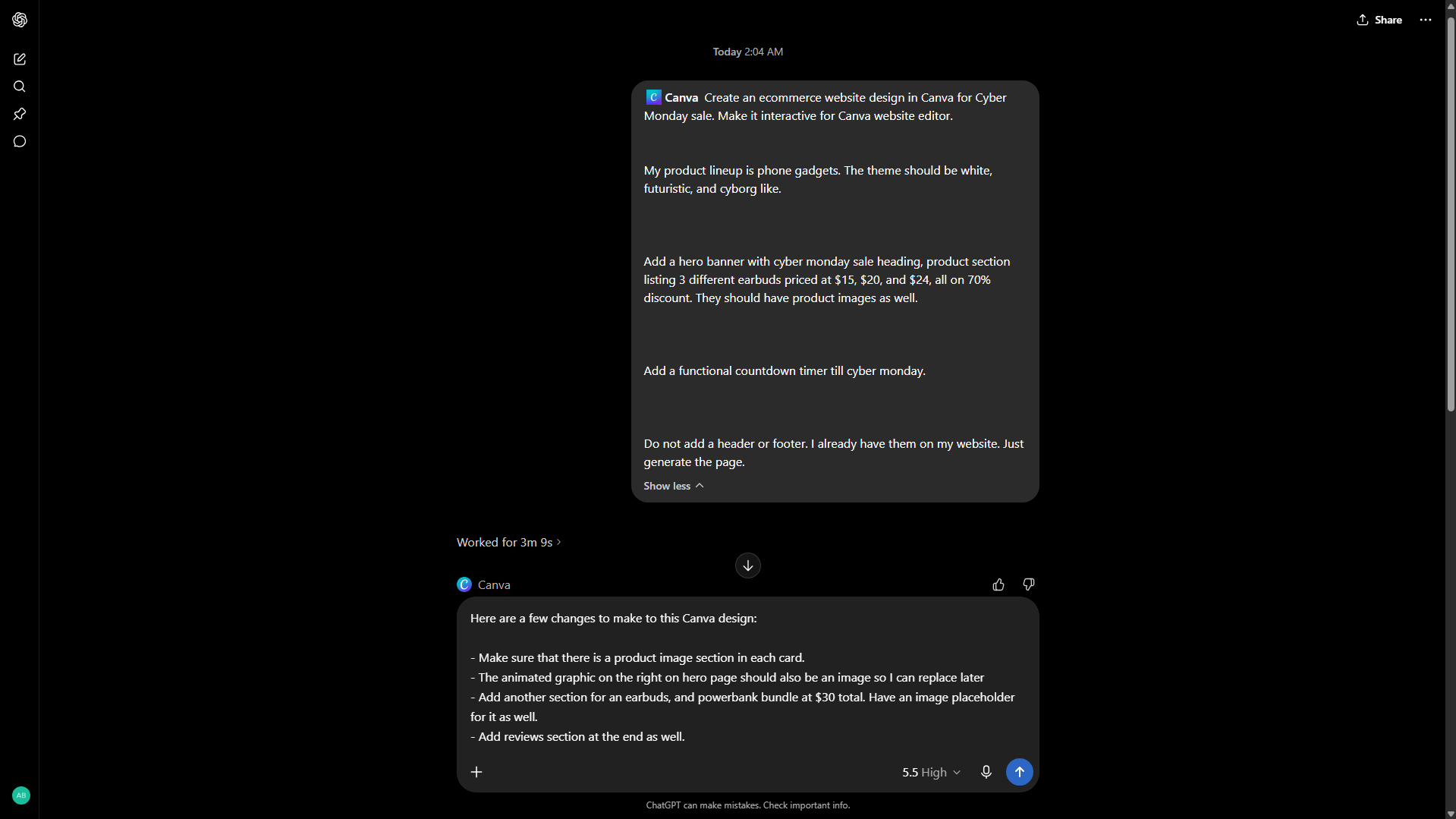
Step 4: Open in Canva & Finalize Changes
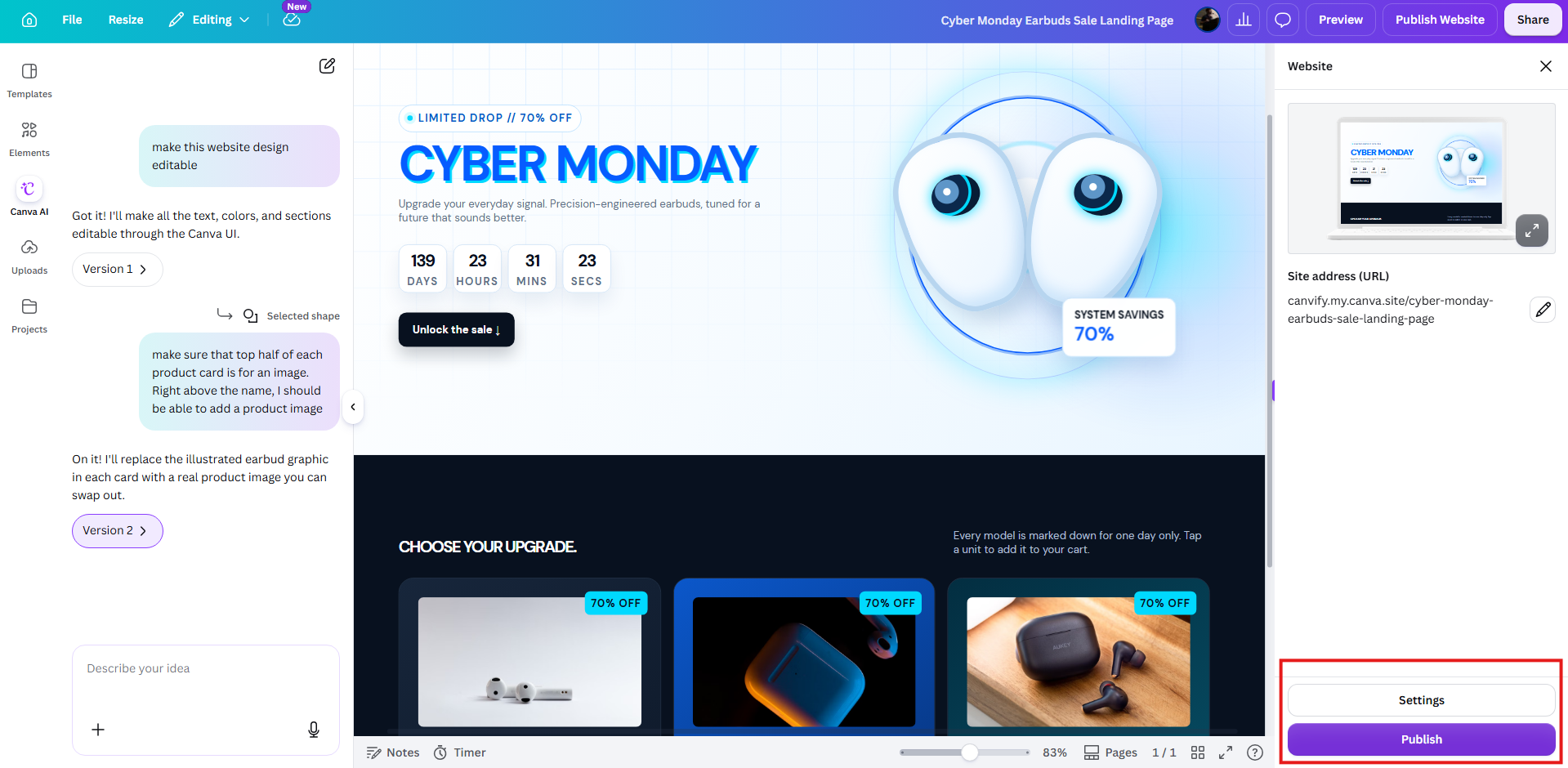
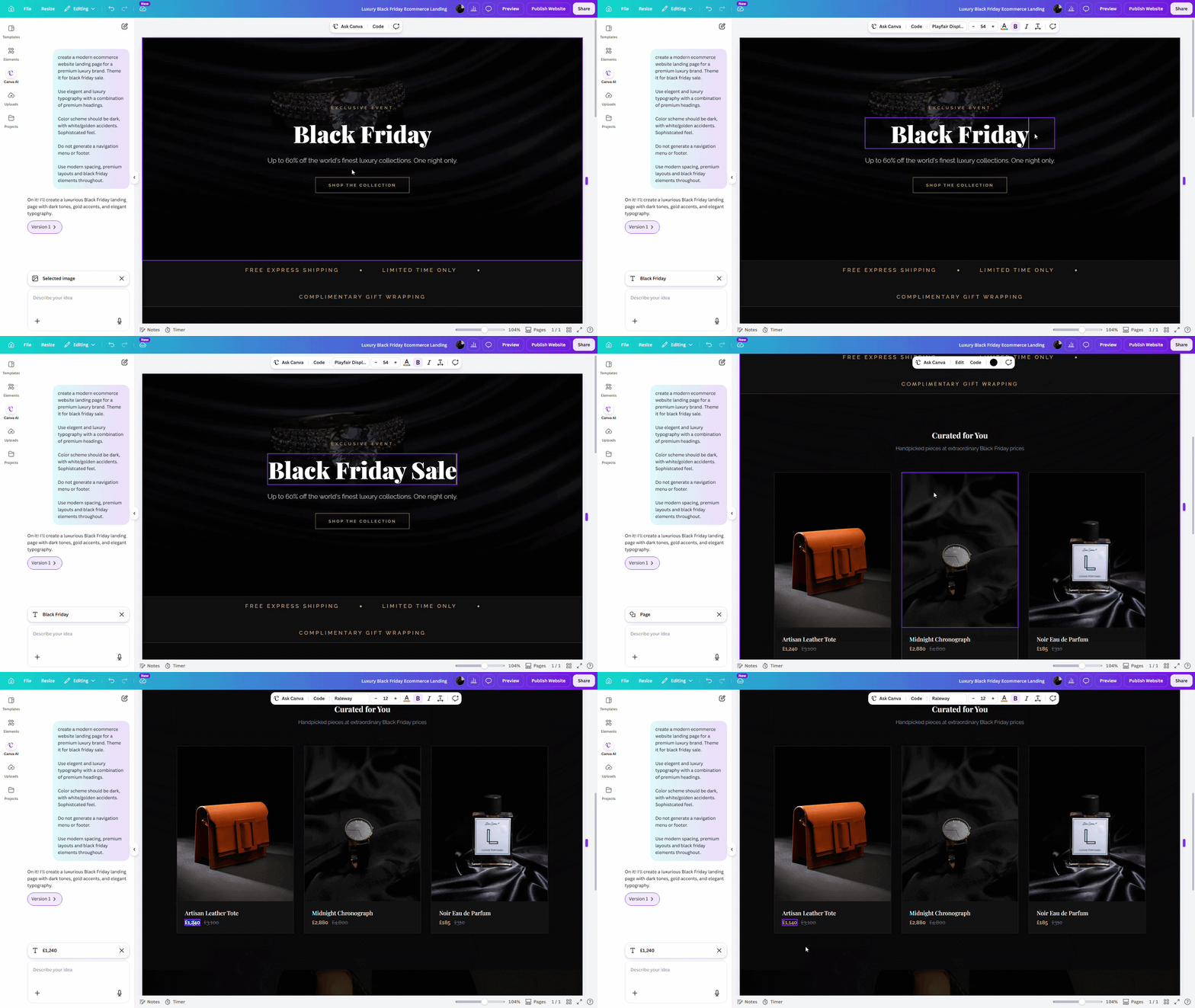
When you’ve almost finalized your design via chatGPT, open your design in Canva to make simple changes like font style, size, text editing, replacing images, etc. Bigger changes like adding/removing elements would require you to use Canva AI from the sidebar.
To make edits to a text field, double click on it.
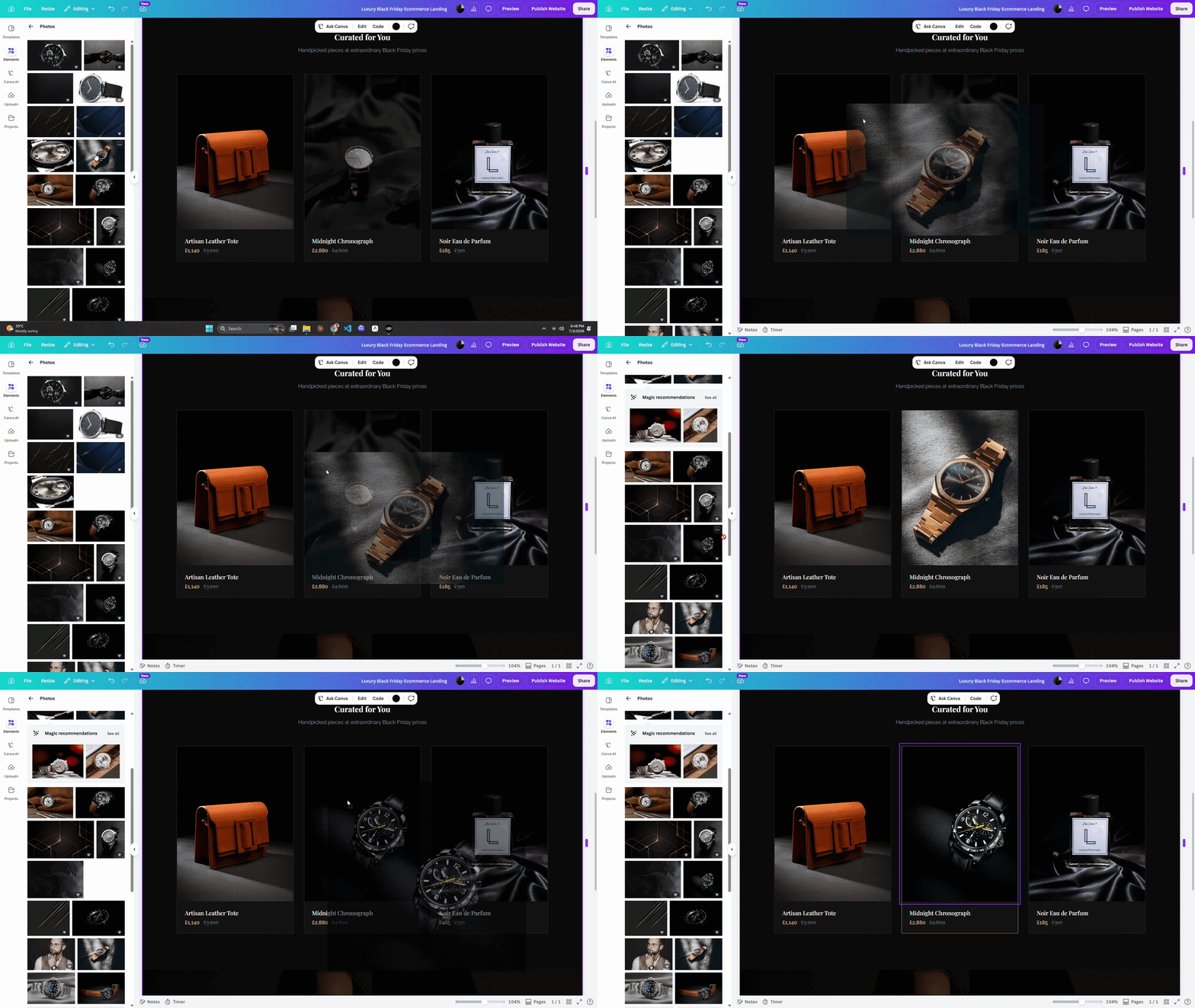
For images, you can usually drag a new image on top of the existing image to replace it.
Common Issues in this method
ChatGPT/Claude did not give me the right design output
Sometimes, there are problems in Canva and ChatGPT/Claude plugin communications which cause AI to hallucinate, deliver a poster instead of a website design, etc.
In this case, start a new chat and change your prompt by removing anything fluffy or confusing about the type of Canva design you want.
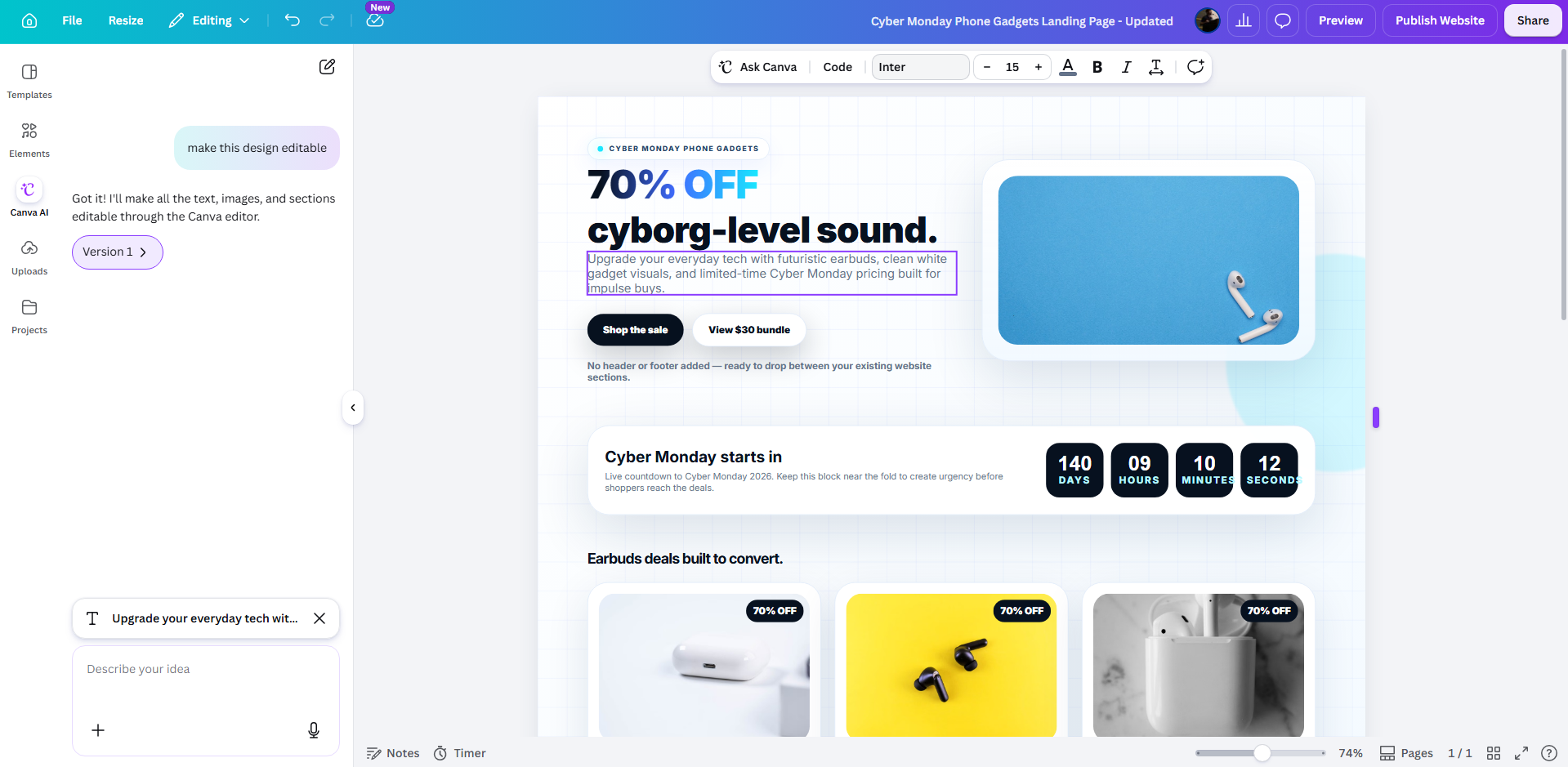
I opened design in Canva but it is not editable
Sometimes, designs are great but not editable inside Canva. You can’t replace an image or edit text. In that case, simply click on Canva AI on the left, and ask it to ‘make this design editable’. Canva AI fixes a few issues in the HTML code your AI wrote and text and images become editable.
Publish Design as Website & Import to Shopify
When done, publish Canva design as a website and bring it over to Shopify using Canvify app. Tutorial: How to import Canva designs to Shopify?