Canva Domain and Your Questions Answered
Firstly…
Canvify does not require any domain setup or configuration. Canvify brings your Canva designs to Shopify. Your imported
page becomes a native Shopify page, and you can use it like any other Shopify page. Any Canva design link you import via Canvify
must end with .my.canva.site domain, which is a default domain provided by Canva.
Happy Path
- You have not connected your domain to Canva.
- Now export from Canva as a website.
- When prompted, enter a unique name for your Canva website domain (e.g.,
yourShopifyStore). - Do NOT choose custom domain option.
- You can add your Canvify page anywhere in your Shopify store without any domain/DNS configuration.
- This is how to make Canvify page your homepage without any domain setup.
- Only if you have mistakenly disconnected your domain from Shopify, please point it back to Shopify.
Happy-happpy!
Life-as-it-is Path
- You have connected your domain to Canva.
- Safely delete this domain from Canva, if you don’t need it there.
- You can delete the domain from Canva by going to Settings > Domains.
- Now you have the happy path above to follow.
Techy Path
- Please note this is a very unlikely scenario, like 0.01%. Try the paths above first.
- You need a custom domain in Canva for your another website, that is not Shopify.
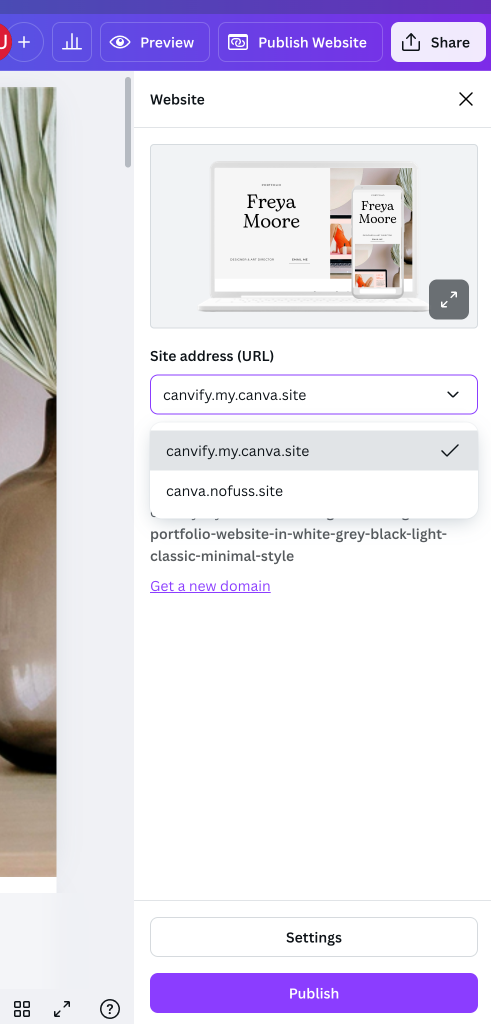
- When exporting from Canva, select the “Site address” option.
- Select the domain that ends with
.my.canva.site. Screenshots below. - Click “Get a new domain” and there should be an option like “Free Canva subdomain”.
If you have any questions or need help, please reach out to me at [email protected]